Jira
When you connect Jira to your organization on Antenna, we automatically combine your Jira and Git data to provide insight into your planning and delivery process.
Invite an admin
You must be an admin of your Jira workspace to connect a site to Antenna. If you are not an admin of your Jira workspace, invite an admin to your organization on Antenna first.
Go to App Users in Antenna
Go to your organization’s Settings and open the App Users tab (for example, https://app.antenna.dev/organizations/your-org-slug/settings/members).
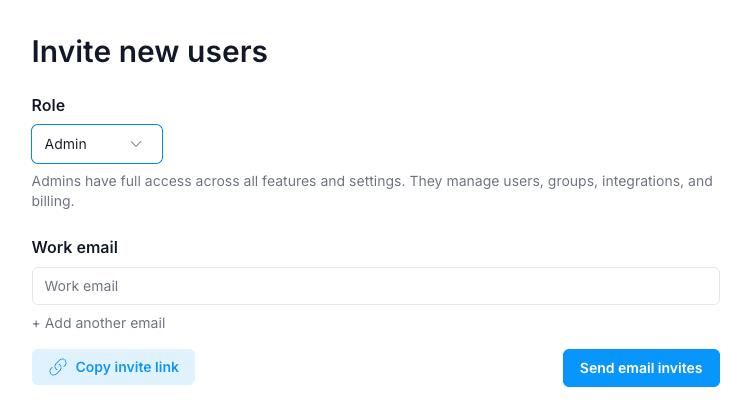
Invite an Atlassian admin to Antenna
Invite a new user with admin permissions.
Install Antenna for Jira
A Jira workspace admin should complete the following:
Create your Antenna account
Create an Antenna account using the invite link in the email you received.
Go to Connected Apps in Antenna
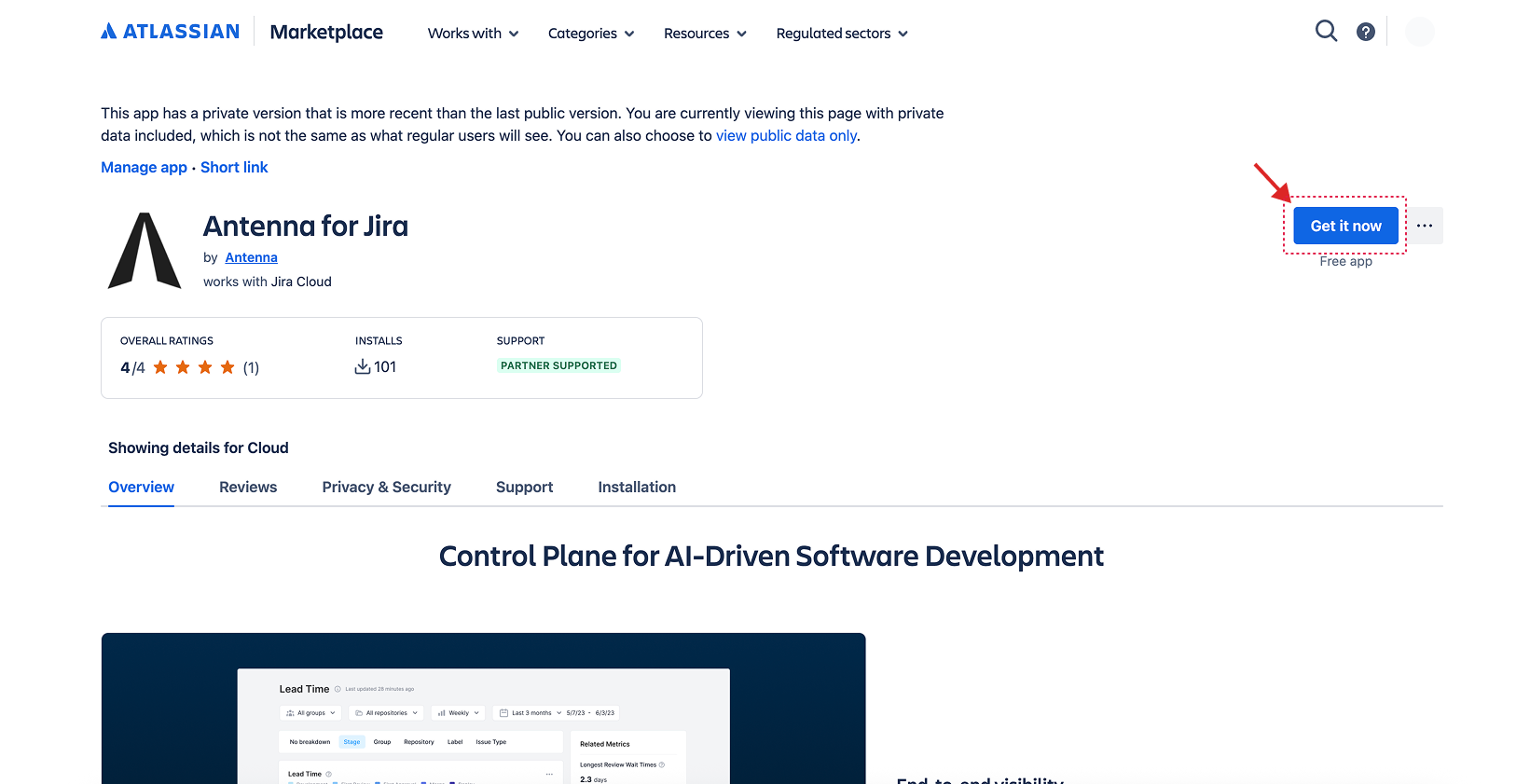
In Antenna, go to Settings > Connected Apps (for example, https://app.antenna.dev/organizations/your-org-slug/settings/connected_apps) and click Connect next to Jira. You will be redirected to the Antenna app listing in the Atlassian Marketplace.
Install the Antenna app for Jira
Click Get it now.
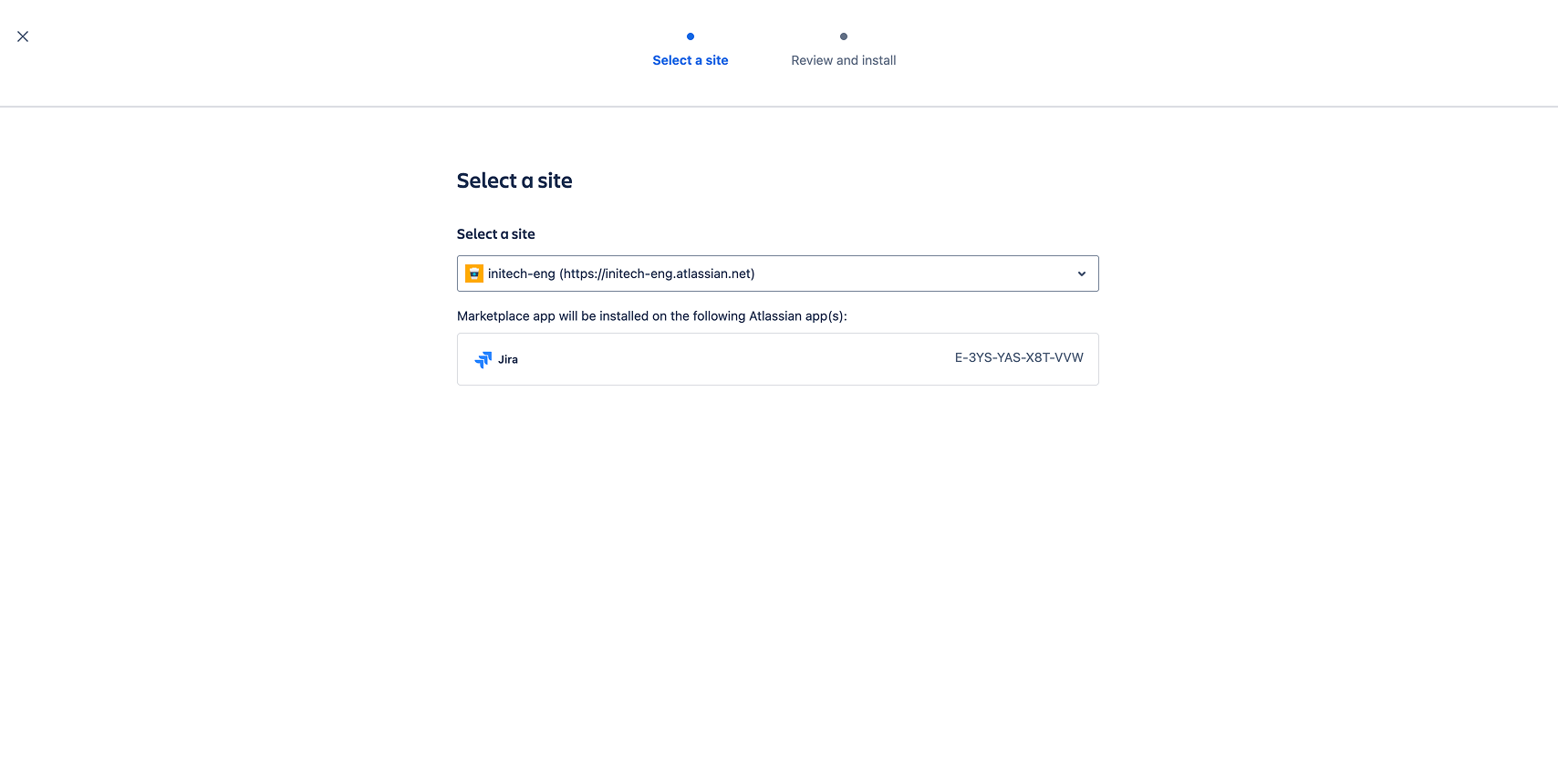
Select your team’s Jira site.
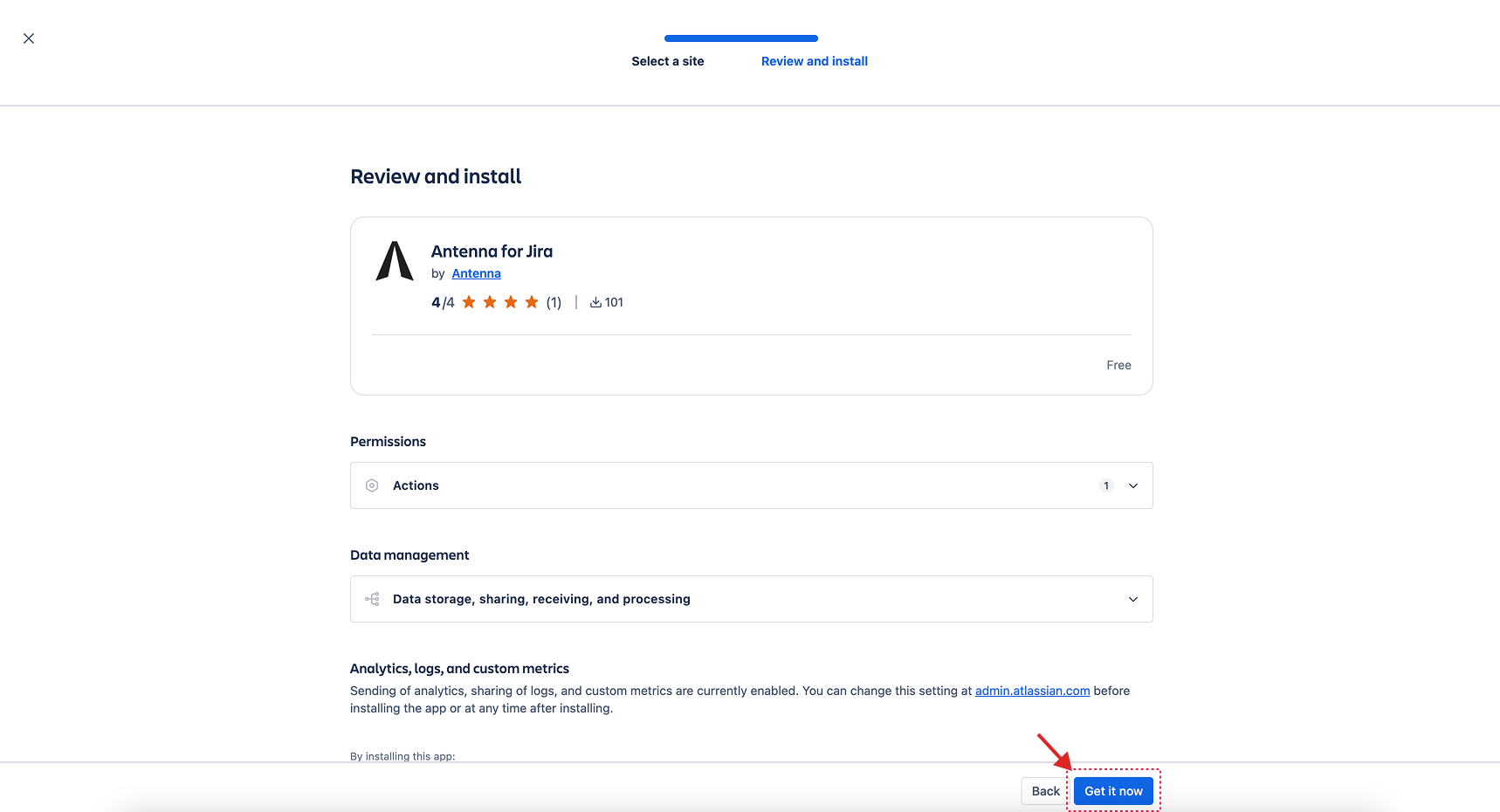
Review the app permissions and click Get It Now to install the Antenna app.
Link your Antenna account
After the Antenna app for Jira is installed, link your Antenna account so your Jira workspace is tied to your Antenna organization.
After you install the Antenna app, you will be redirected to the Explore more apps page.
Click Get Started.
If you don’t see the Get Started button, try refreshing the page.
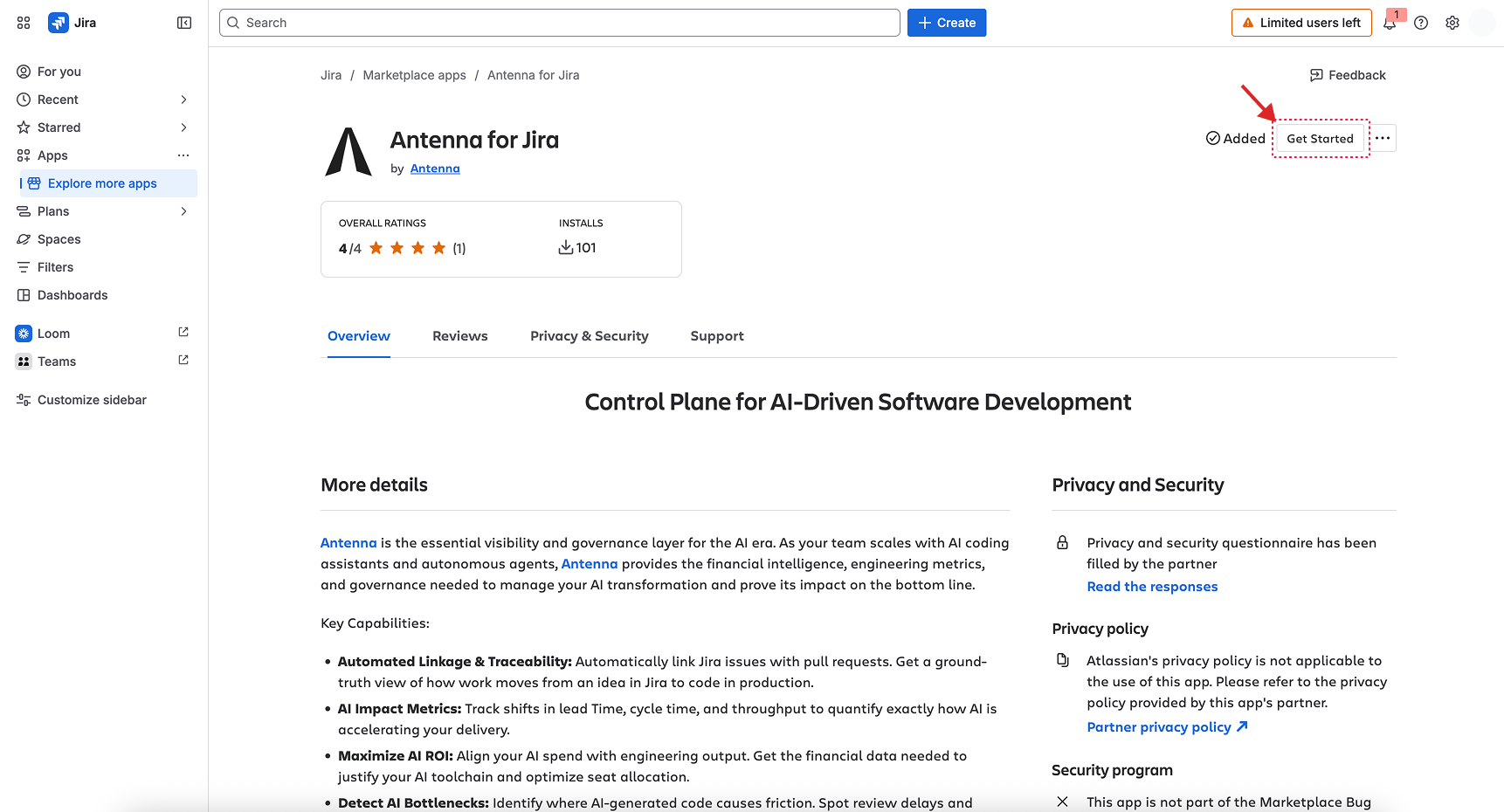
Then, link your organization to Jira.
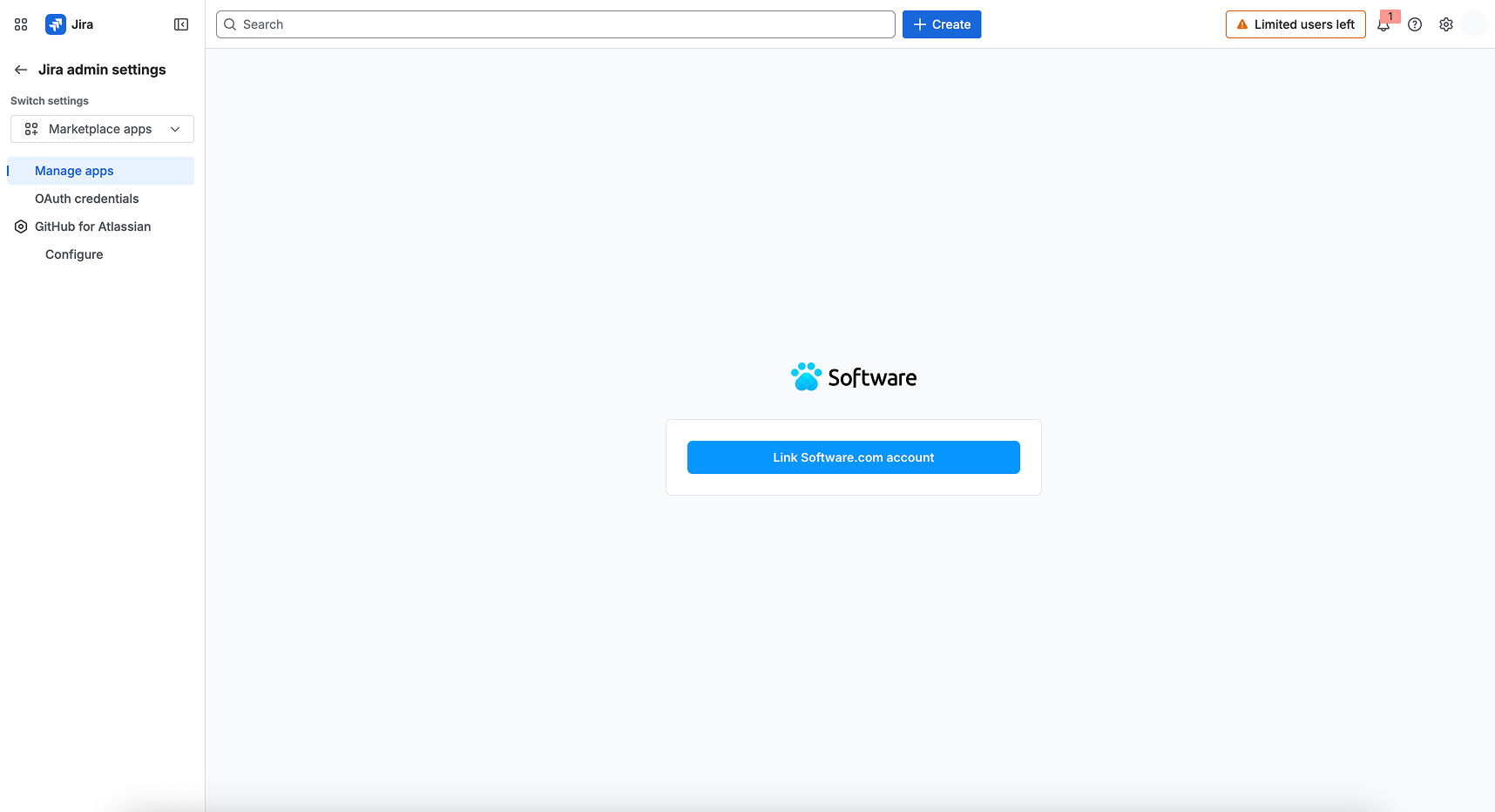
Linking your Antenna account (Post-Install)
This section covers how to link Jira to Antenna if the Antenna app for Jira is already installed, but Antenna still shows Jira as disconnected.
Select your Jira site
Go to admin.atlassian.com , then Apps > Sites, and select your site.
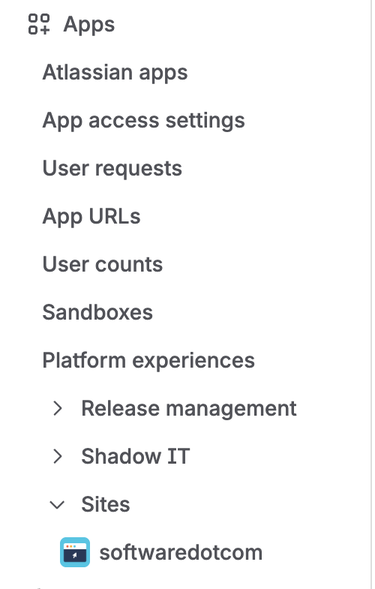
Go to the Antenna app page
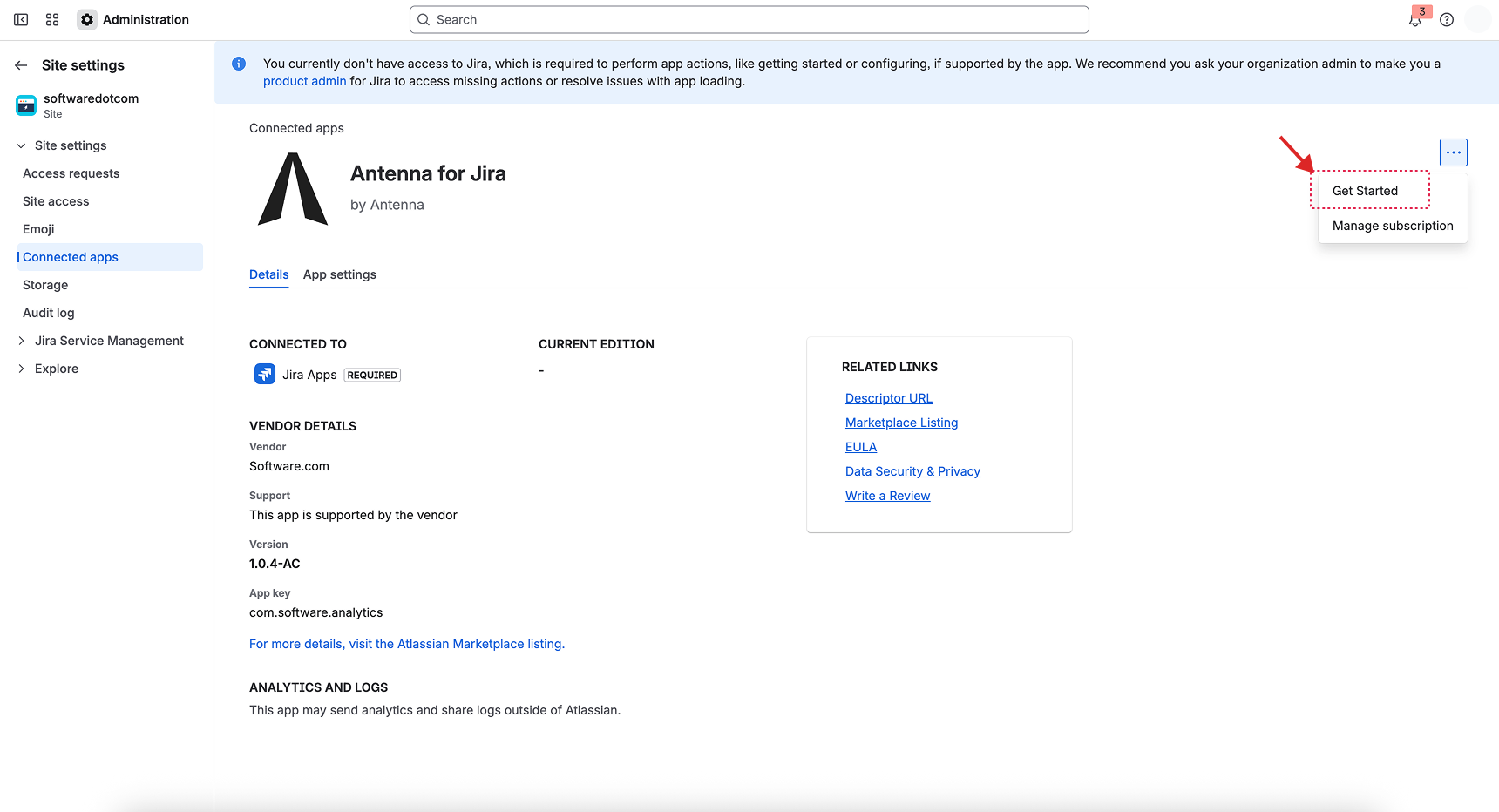
Open the Connected Apps tab, then Installed Apps, and click View app details.
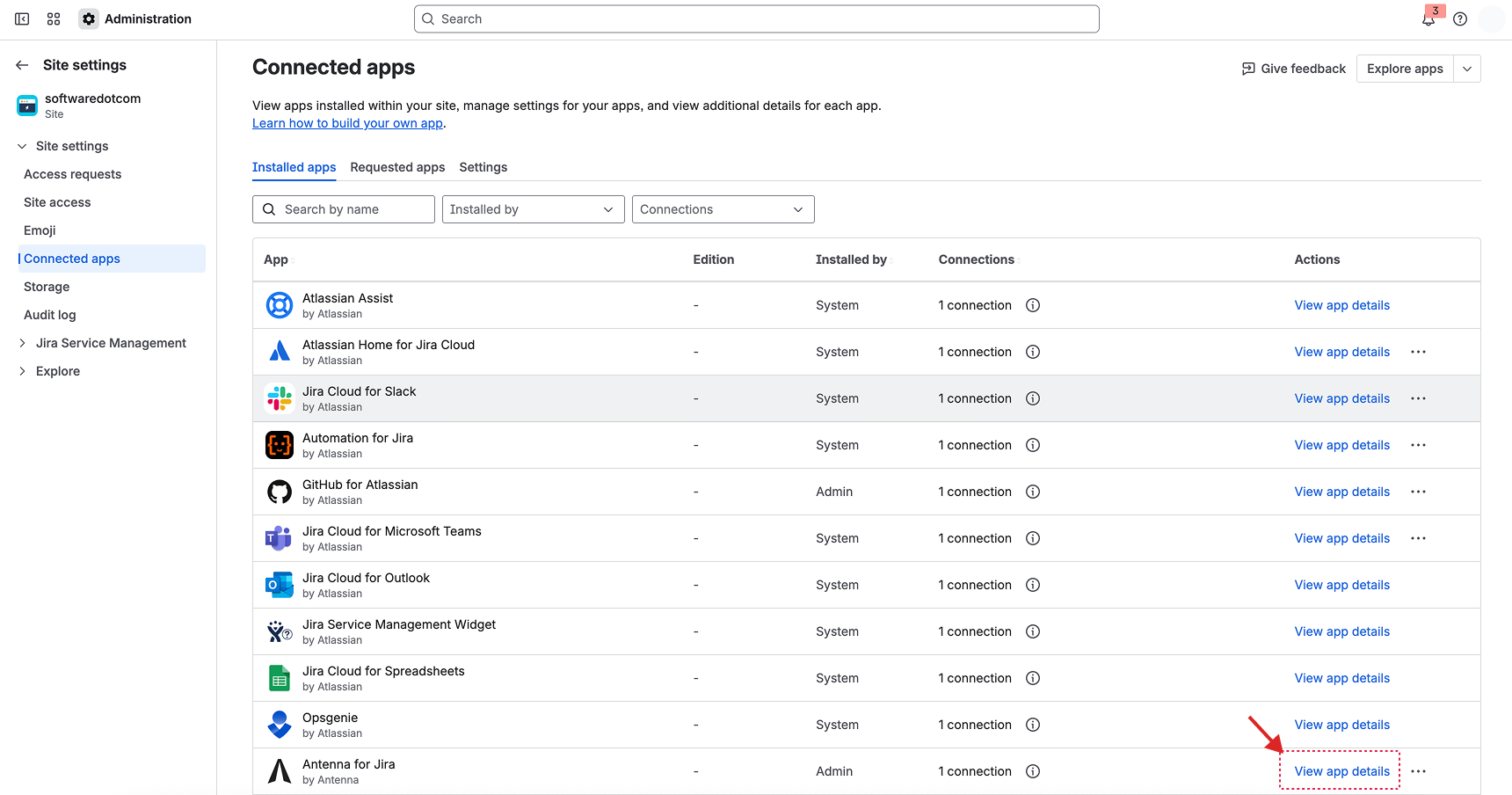
Example URL: https://admin.atlassian.com/s/your-site-id/user-connected-apps/tab/installed
Link your organization
Click Get Started. You will be redirected through the same flow as in Step 4 above.
Verify the connection
On app.antenna.dev, open your organization’s Settings and check the Connected Apps tab to confirm your Jira workspace is connected.